Garment Cache in scene
发布于:2024-11-21
Updated Records
Update Time | Updated Content | SDK Version | Content Search |
2023-05-05 | Cache penetration post-processing | V1.5.0 |  |
2022-11-29 | Caching sub-packaging | V1.1.0 |  |
2022-09-29 | Cache recording and broadcasting | V1.0.1 |
Functional Description
Meta Garment Cache is an improvement over ABC in terms of recording efficiency and size, and is about 1/3 the size of the traditional Alembic format.
Meanwhile, automatic subcontracting, node playback, hybrid transition and other functions have been added, which can realize the needs of more business scenarios, such as one-click control of cross-dressing and loop.
Garment Screenshots | Number of Garment Vertices | Recording Frames | GCahe volume |
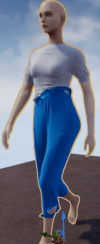 | 3.5W | 2495frames | 918M |
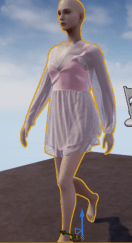 | 4.6W | 2000frames | 1G |
1. Generate Garment Cache
1. RuntimeMode Switches to GarmentCacheRecord mode.
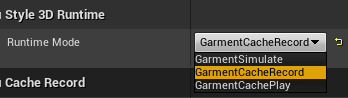
2. Edit the garment cache name, and other cache generation configurations, and garment simulation configurations.
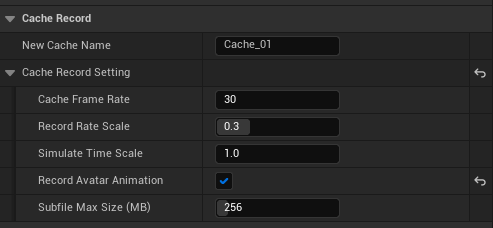
New Cache Name Cache naming
Cache Frame Rate Cache the play frame rate when playing after recording is complete
Record Rate Scale It is recommended that the recording speed is less than 1 times the slow recording cache, the recording rate does not affect the play rate
Simulate Time Scale Scaling for simulation effects, less than 1 can get accelerated simulation special effects
Record Avatar Animation Cache play can ensure that the character animation and garment cache synchronization
Subfile MaxSize(MB) The cache recording will be automatically subcontracting after reaching the set size. Maximum 2048, 1024 is recommended
After V1.5.3, the following two items will not be displayed, and the default is to save while recording
Save Subfile While Recording Save while recording, it will wait until all recordings are finished when unchecked
Confirm Before Saving Cache Manual confirmation before storing the cache, and choose not to store it if the cache recording is not good
Notice
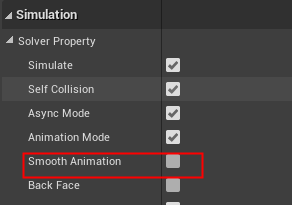
Async Mode and Smooth Animation should be unchecked in Solver Property when recording cache, otherwise, the cache play will wear out the model.
3. Record Cache
Run it in the editor to start recording the cache.
During simulation, the progress of cache generation is displayed in the lower right corner of the editor.
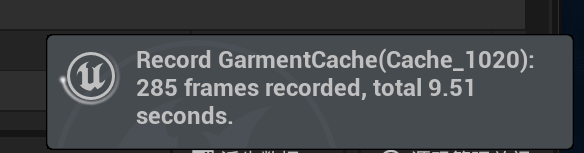
4. Save Cache
Stops running, at which point it automatically starts saving the cache file.

When the cache file is saved successfully, a corresponding message will be prompted.

The files are saved by default in the project/content/Style3D/GarmentCache, use a garment-named folder to distinguish .GCahe files.
- Same cache naming is automatically overwritten after repeated recordings.Comment
- Check Save Subfile While Recording to automatically trigger the storage of the subfile when it reaches the limited volume.
2. Play Garment Cache
1. RuntimeMode switch to GarmentCachePlay mode.
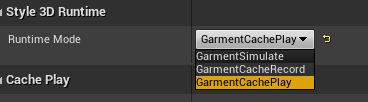
2. Fill in the name of the cache to be played.
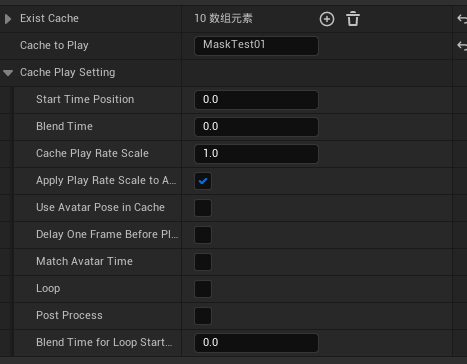
【available】Loop, play rate, and cache start play node can be controlled.
Setting Item | Instruction |
Cache to Play | Setting the cache for play (fill in the name) |
Start Time Position | Set the point at which the cache starts playing (default setting is 0, play from the beginning) |
Blend Time | Setting the mix of simulated and cached play duration |
Cache Play Rate Scale | Cache play rate |
Apply Play Rate Scale to Avatar | Rate set for character motion application (used in conjunction with cached playback rate) |
Use Avatar Pose in Cache new | The model's pose is recorded in the cache, sometimes the model's animation blueprint doesn't take effect, so you can check this option. |
Match Avatar Time | Match character time, cache recording with Record Avatar Animation checked, play with this item enabled. |
Loop | recurrent mode |
Blend Time for Loop Start End | Duration of mixing the first and last parts of the loop (used with Loop mode) |
Post Process new | Cache penetration post-processing to repair small penetrations between the cache and the body |
The animation rate slows down during the first mix of the loop mode, and it is recommended to set the length of the tail mix to <1
Possible mold penetration during mixing of some actions (to be optimized)
3. Play Cache
Run it in the editor to play cache
3. Precautionary Note
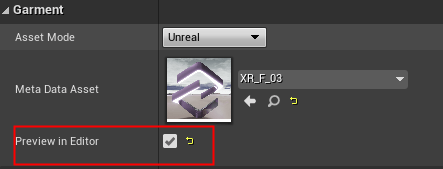
- Make sure PreviewInEditor is checked when recording and playing the cache.
- If Smooth Animation is checked when recording cache, there may be a mold wearing problem during cache play.
Solution1 Uncheck Smooth Animation when recording cache
Solution2 Record avatar animation when recording cache, check Record Avatar Animation.
